Images
Images in the document body
Documents can contain images. If your document is a single Markdown file, convert it to directory form. Create an images/ directory inside your document directory, then place the image files in it:
doodads/
  _doodads.md
  images/
    doodad.jpeg
    other-doodad.svg
Embed those images in the text using the standard Markdown image syntax, using a path starting with images/:
Sink Ghost wishes you a good semester:
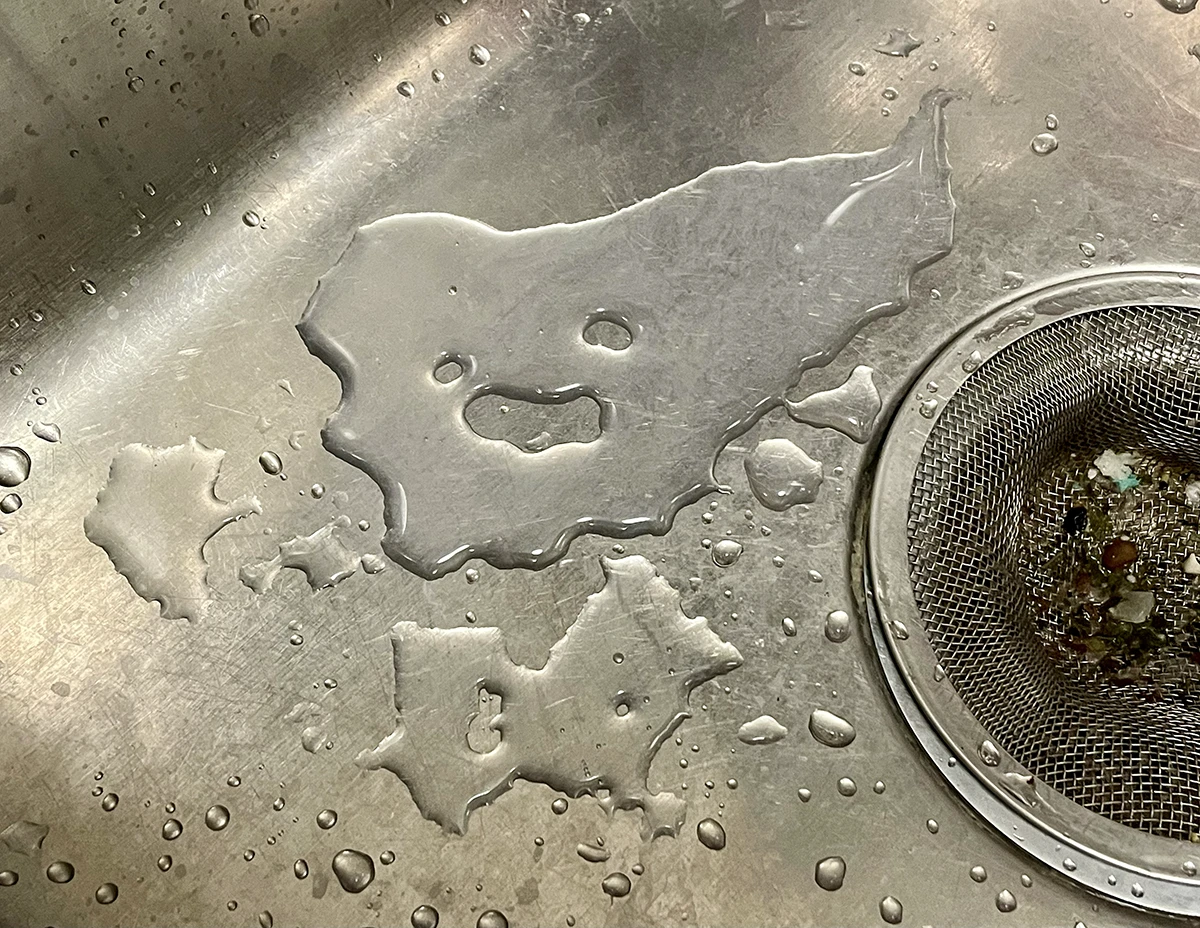
Ooooooooooooo!
Sink Ghost wishes you a good semester:

Ooooooooooooo!
You can use any image format that web browsers support; Coursage is not opinionated about image formats. Good choices are .svg, .webp, .png, and .jpeg / .jpg.
Note that the text inside the [square brackets] is alt text, which helps readers who are blind or have limited vision:

Coursage will allow an image even without alt text, but you should provide it. Here are tips on writing good alt text. Note that if an image is a diagram, the alt text should not describe the appearance of the diagram, but rather convey verbally the same information that the diagram conveys graphically.
Title image
If you want a featured / “hero” image at the top of a document alongside the document title (like this), do not place the image in the Markdown text; instead, use the title_image property in the front matter:
---
title_image:
  url: images/doodad.jpeg
  alt_text: "A hand holding a vibrantly colored doodad, freshly harvested from the doodad tree"
---

# Doodads

The history of doodads begins with...
This lays out the image with responsive adjustments for small screens.
Image size
You can adjust the size of images by appending the {:scale="…"} option to an image:
{:scale="0.15"}
(Note the quotation marks.)
The default scale for images is 0.5, so that pixel images look sharp on modern high-resolution screens.
Dark mode
Coursage respect the browser / OS preference for dark mode. Some images (such as Sink Ghost) work just fine as is in both light and dark mode, but some don’t. In dark mode, for example, the dark text in this image becomes illegible on the black page background:


You can solve this problem by adding {:.dark-mode-invert} to an image, which will invert the lightness of the image (while generally preserving hue and saturation) if and only if the page is in dark mode:
{:.dark-mode-invert}
You can combine scale and dark-mode-invert:
{:.dark-mode-invert scale="0.25"}
You can also apply dark mode to a title image using the css_class option:
---
title_image:
  url: images/emojis.png
  alt_text: "A grid of emojis showing different facial expressions"
  css_class: dark-mode-invert
---
Working with SVG graphics
TODO
Formatting and layout
If you place an image in its own paragraph, on a line by itself in the Markdown with a blank line both before and after, Coursage will center the image, place space about and below, and make it adapt to the window / screen size. Here is Sink Ghost again, in their own paragraph:
Try resizing this window to be very wide and very narrow, and notice how Sink Ghost adapts to the different sizes. This layout help goes away if an image is not in a whole paragraph by itself. You can also place multiple images on the same line, place them inside tables, etc., but in that case the spacing and alignment is entirely up to you. This allows some trickery with combining multiple images in a complex layout, though even when it works, the resulting Markdown is not easy on the eyes:
| Pride flag | | MN flag | | MN pride flag |
|:----------:|-|:-------:|-|:-------------:|
| 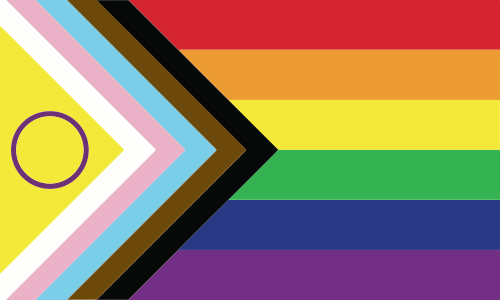{:scale="0.3"} | **+** | {:scale="0.3"} | **=** | 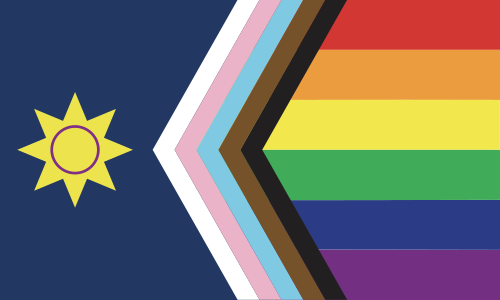{:scale="0.3"} |
{:.compact}
| Pride flag | MN flag | MN pride flag | ||
|---|---|---|---|---|
 |
+ |  |
= |  |
At a certain level of complexity, it’s often best to just create a single SVG image with the desired layout:
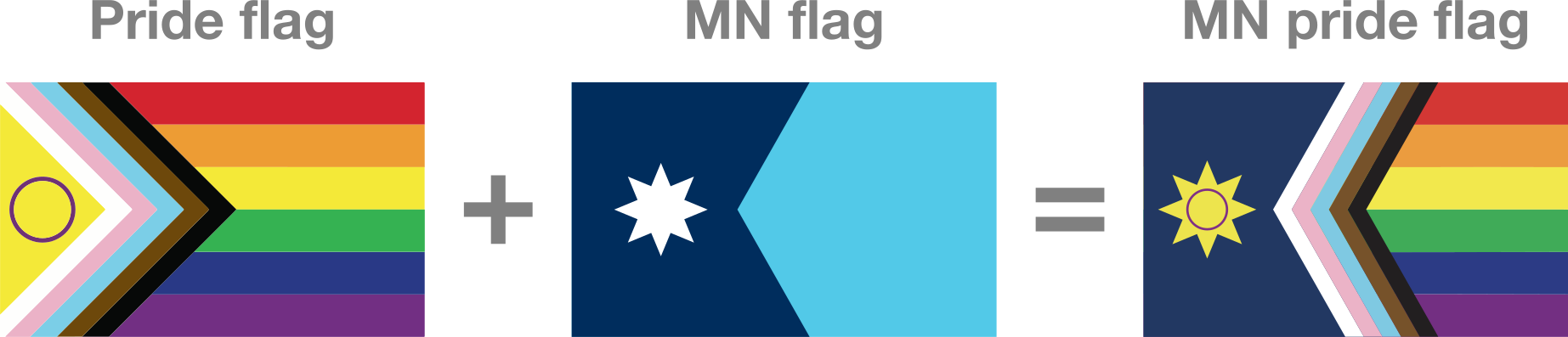{:scale="0.3"}

(Note the long alt text. In general, short alt text is better; however, when an image contains important text or other essential information, the alt text should fully restate that information. Is it a judgement call what information is pedagogically important and belongs in the alt text.)
Original art source files
The browser-friendly images you include in your document may often be derived from some other non-browser-friendly source format (e.g. a Photoshop or OmniGraffle file) — and preserving that source may be necessary to allow edits in the future. Coursage allows any type of file in the images/ directory, and it is fine to have unused files in that directory, so you can (and generally should) include the editable image source alongside the browser-friendly image export.
For example, the flags diagram above is an Illustrator document, so this document’s images/ directly includes both the original .ai and the exported .svg:
images/
  flag-combination.ai
  flag-combination.svg